Logo generator
Describe a mark, generate a batch of candidates, refine the one that works, then trace it to a real vector. The output feeds the icon generator, so a logo becomes a full icon set without a round trip through another tool.
Generating candidates
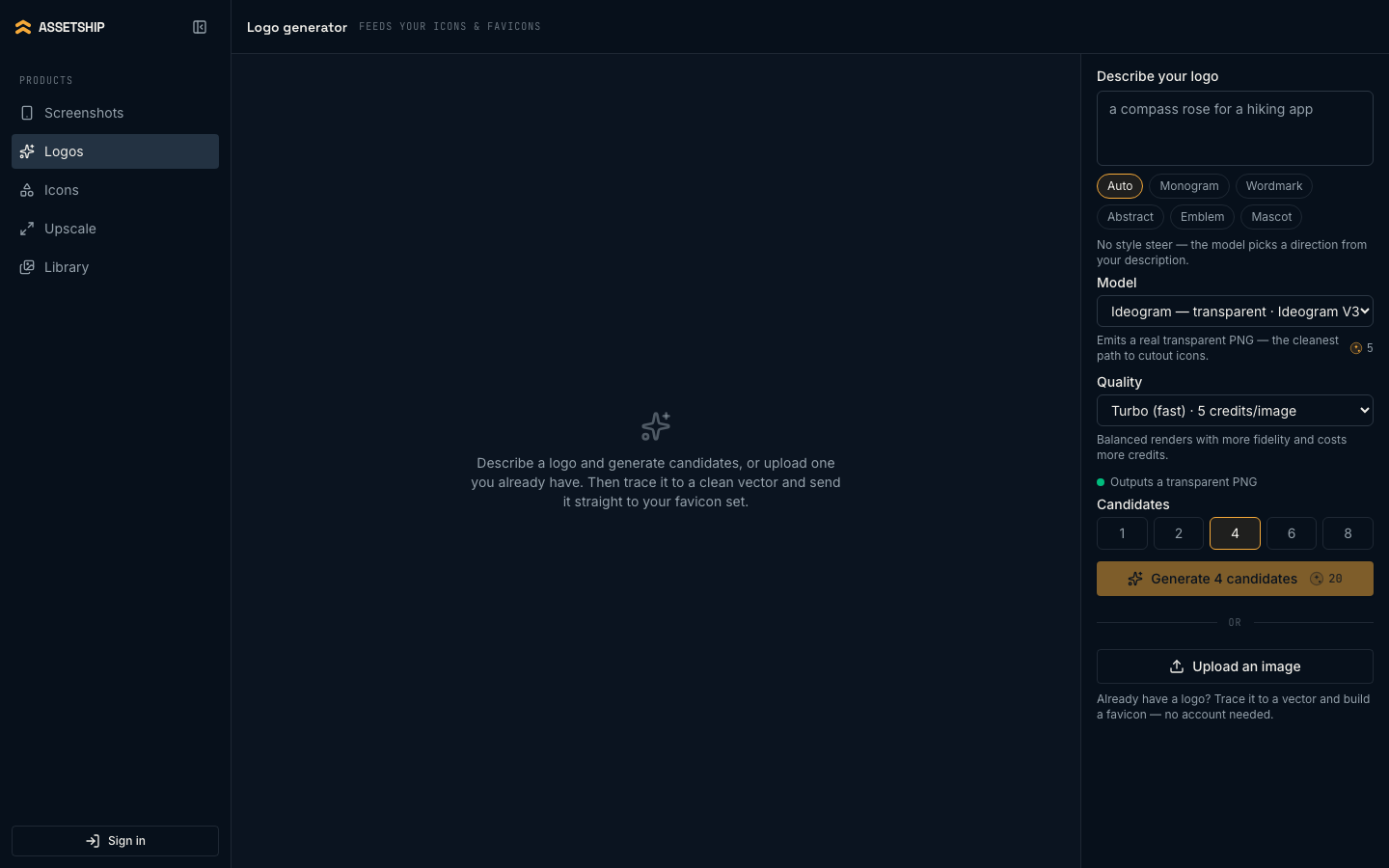
Write what you want in Describe your logo — something like a compass rose for a hiking app — and pick a style. The style pill is a real constraint on the model, not a label:
- Auto
- No steer. Useful for a first look at the space.
- Monogram
- Letterforms — initials built as a mark.
- Wordmark
- The name itself, set as the logo.
- Abstract
- A non-representational mark.
- Emblem
- Contained — a badge, crest or seal.
- Mascot
- A character.
Candidates controls how many you get back at once: 1, 2, 4, 6 or 8. Four is the default and is usually the right trade — enough variety to judge a direction, cheap enough to throw away. The button shows the total credit cost before you commit.
Models and transparency
The Model menu lists the models that are good at marks rather than photographs. Some return a transparent PNG natively — the panel says Outputs a transparent PNG when that is the case, and Ideogram — transparent is the default for exactly this reason. For models that render on a background, a Remove background (transparent cutout) checkbox runs a cutout pass afterwards.
Cost varies by model and is always shown on the button before you click. See AI images for how credits work.
Refining and vectorizing
One more
With a candidate selected, One more generates a single fresh take on the same prompt and model. It is the cheap way to nudge a result you nearly like, rather than re-rolling a whole batch.
Vectorize
Vectorize traces the selected raster into an SVG. This runs in your browser, costs nothing and needs no account. The Vector (SVG) panel sits beside the original over a checkerboard so you can see exactly what the trace kept and what it lost — flat, high-contrast marks trace cleanly; soft gradients and fine texture do not.
Getting the logo out
- PNG downloads
logo.pngat the generated resolution. - SVG downloads
logo.svg, available once you have traced. - Use in favicon sends the mark to the icon generator, preferring the vector, and drops you straight into composing the icon set.
Already have a logo?
Upload an image skips generation entirely. Upload the mark you already use, trace it, and take it through to a favicon and icon set — no account, no credits. This is the fastest route if you came here for the icon pipeline rather than the design.