Localization
Translate the words, keep the design. Add the languages you sell in, type the translations once, and export a complete set per language — every one at full store resolution.
Why this is worth doing
Localized screenshots measurably lift conversion in non-English markets, and almost nobody does them, because the manual version is brutal: duplicate the document per language, retype every headline, re-export everything, and repeat the whole thing when you change one word.
AssetShip keeps one design. Languages are a property of the document, translations are a property of each text layer, and the export walks the combination. Change a layout and every language changes with it, because there is only ever one layout.
Adding languages
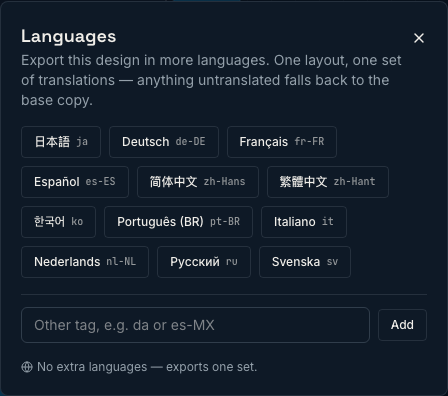
The globe button in the toolbar opens Languages. Common App Store locales are one click — 日本語, Deutsch, Français, Español, 简体中文, 繁體中文, 한국어, Português (BR), Italiano, Nederlands, Русский, Svenska — and the text field takes any other tag, such as da or es-MX.
Entering translations
Once the document has languages, every text layer’s panel gains a Translations block with one field per language. Type the translated headline there and leave anything you have not got to blank — blank falls back to the base text, so a half-translated document still exports cleanly rather than shipping empty screens.
The layout does not move
This is the part that makes localized sets maintainable. Every language renders through the same layout, at the same positions, with the same type sizes. A long German headline cannot push your device frame down the canvas or reflow the English screens, because languages are not separate documents that can drift apart — they are one document rendered repeatedly.
Exporting
Nothing extra to do: export as usual and you get every language in the same pass. The zip is organised one folder per locale, with the base design at the top level, so the folders map directly onto the per-language uploads the stores ask for.
Fonts
Scripts beyond Latin pull their own fonts automatically during export. If you are shipping Chinese, Japanese or Korean, read the note on the Export language selector in Exporting — it controls which regional character forms are drawn.
Practical notes
- Start with the two or three markets that already show up in your analytics rather than all twelve at once.
- Keep headlines short in the base language. Every translation inherits the space you left.
- Localize the app capture inside the phone frame too where it matters — a screenshot of an English UI under a Japanese headline undoes most of the benefit.