Exporting & sizes
Pick every size you need and render them in one pass. Exporting is free, on every plan, at full resolution — you design once and the renderer handles each store's exact pixel requirements, and the social networks' too.
The export dialog
Export in the toolbar lists the sizes as checkboxes, grouped by destination — App Store · iOS, Google Play · Android and Social — with Select all per group. Tick as many as you want across any of the groups: this is one render pass, not one export per size.
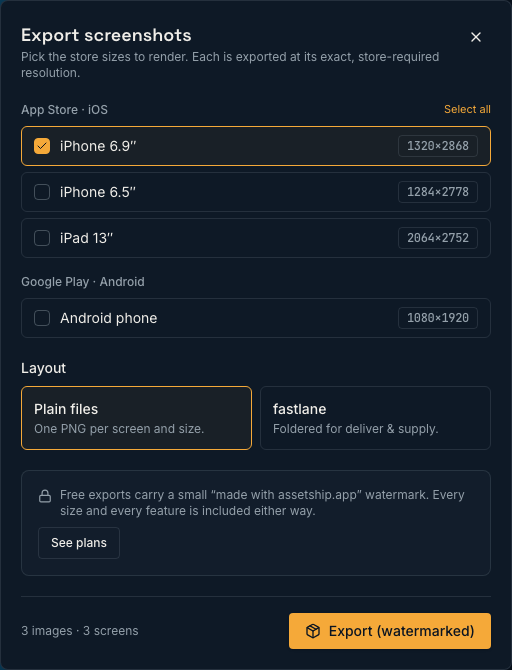
- iPhone 6.9″
- 1320 × 2868
- iPhone 6.5″
- 1284 × 2778
- iPad 13″
- 2064 × 2752
- Android phone
- 1080 × 1920
These are the resolutions the stores require, not approximations that get resized on upload. A single image downloads on its own; anything more arrives as a zip named after your project, with files named screen-1-iphone-6.9.png and so on, so the order survives the trip into App Store Connect.
Uploading with fastlane
Switch Layout to fastlane and the zip comes out as a folder tree fastlane already understands, so you can upload from your own machine with your own credentials.
fastlane/screenshots/<locale>/- App Store, read by
deliver. Every device size shares the folder — deliver identifies them by resolution, which is exactly why these files must not be resized. fastlane/metadata/android/…- Google Play, read by
supply, underimages/phoneScreenshots/. Play uses different locale tags to Apple and the folders are already named its way.
Filenames are numbered to fix the order they appear on your listing. The zip includes a README with the exact command for each store, so you do not have to go and look up the flags that stop deliver from touching your binary and metadata.
What renders your export
The canvas you edit on is a live preview. The export is drawn by a separate deterministic renderer — compiled to WebAssembly, running in a worker — with the fonts pinned and embedded rather than borrowed from your operating system.
That is why an export made on a Mac, a Windows machine and a CI box come out byte-for-byte identical, and why the type in your PNG has the same metrics as the type on screen. It also means a big export does not freeze the editor while it runs.
CJK and other scripts
Fonts for other writing systems load on demand as your text needs them. Chinese, Japanese and Korean share code points but draw some characters differently per region, so the toolbar has an Export language selector — Auto language, 日本語, 简体中文, 繁體中文, 한국어 — that pins which regional forms are used. Leave it on Auto unless you are shipping to a specific market and know which forms you want.
Watermarks
Free exports carry a small made with assetship.app mark. Every size, every feature and full resolution are included either way — the watermark is the only difference between a free export and a paid one. Paid plans export clean.
Before you upload
- Check the set in View all screens first — inconsistent headline heights across a set are obvious on a listing page and invisible while you work on one screen.
- Screenshot order on the store follows filmstrip order. Reorder before exporting.
- Shipping to more than one market? Add your languages before you export, and you get every language in the same pass. See Localization.
Social sizes
The Social group renders the sizes each network stores without resampling. That is the whole point of picking them from a list rather than cropping a store screenshot afterwards: hand a network an off-size image and it re-encodes it, which is what turns a crisp headline into a soft one.
1080 × 1350PNG1080 × 1080PNG1080 × 1920PNG1200 × 630JPEG1600 × 900PNG1640 × 924PNGNone of these are ticked by default — an export you do not think about still produces exactly the store sizes it always did. Ask for them explicitly, in the dialog or by spec id over MCP.