AI images, upscaling & library
Generation is the one part of AssetShip that costs money to run, so it is the one part that costs credits. Everything you generate is filed in your library and reusable forever.
Credits
A credit is a unit of generation. Cheap, fast models cost one; larger and higher-fidelity models cost more, and the exact price is always shown on the button before you spend anything — there is no after-the-fact billing.
A new account gets 10 credits to try things with. They do not expire and they do not refill. Subscriptions include a monthly allowance, and credit packs top up any account without changing your plan. See pricing for the numbers.
The models
Different jobs want different models, so AssetShip exposes the choice instead of hiding one behind a “generate” button. The Model & tuning section in the backdrop panel, and the Model menu in the logo generator, list the ones that suit that job.
- FLUX fast
- One credit. The default for backdrops — quick enough to iterate on a prompt.
- FLUX quality
- More coherent results for the same prompt, at a higher cost.
- FLUX Pro ultra
- Top-tier photorealism. Backdrops only.
- Recraft
- Strong on graphic, illustrative and design-led output.
- Seedream
- An alternative photoreal look. Backdrops only.
- Nano Banana Pro
- The premium option, with selectable 1K, 2K or 4K output. Works for both backdrops and marks.
- Ideogram — transparent
- Returns a transparent PNG directly. The default for logos and icons.
Resolution and cost
Where a model supports several output sizes, a Resolution menu offers Auto, High and Ultra, each labelled with its megapixel count and its credit cost. Options a model cannot produce are disabled and marked at model max rather than silently ignored.
Generating a backdrop
In the editor’s Backdrop panel, describe what you want and press Generate. The result is applied to the current screen as an image backdrop, which means you immediately get the Crop & position controls to frame it — zoom, offset, reset.
On a connected set, generate once and the image spans the whole panorama rather than repeating per screen.
Prompts that describe a background work better than prompts that describe a scene: the middle of the frame will be covered by a phone and a headline, so texture, light and colour at the edges is what you are actually buying.
Upscaling
The upscaler sharpens and enlarges any image — a generated backdrop that needs to reach 2868 px tall, an old logo, a photo you were sent at the wrong size. It costs 3 credits per run.
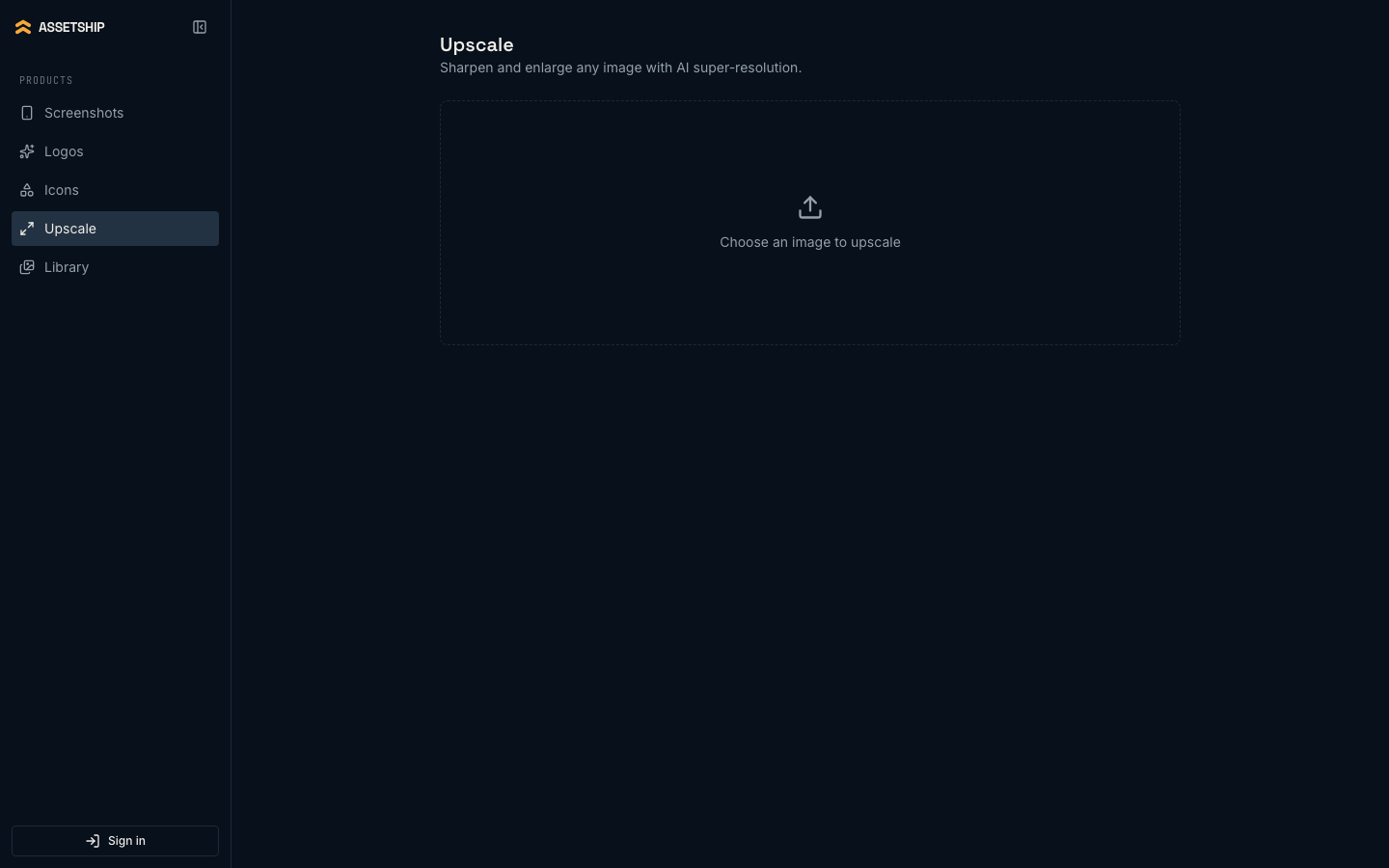
It is reachable from three places, all the same operation:
- Upscale in the sidebar, for any file on your machine.
- Upscale backdrop in the editor’s backdrop panel, which replaces the current backdrop with the sharper version.
- The Upscale action on a library card, which files the result as a new item.
Background removal
Generated marks sometimes arrive on a background you do not want. The Remove background (transparent cutout) checkbox in the logo generator runs a cutout pass on the result, giving you a transparent PNG suitable for an icon. It applies to models that do not already return transparency — the ones that do are labelled, and for those the checkbox is unnecessary.
The library
Everything you generate is filed automatically, and anything you upload can be too. The library is the reason you never regenerate an image you already paid for.
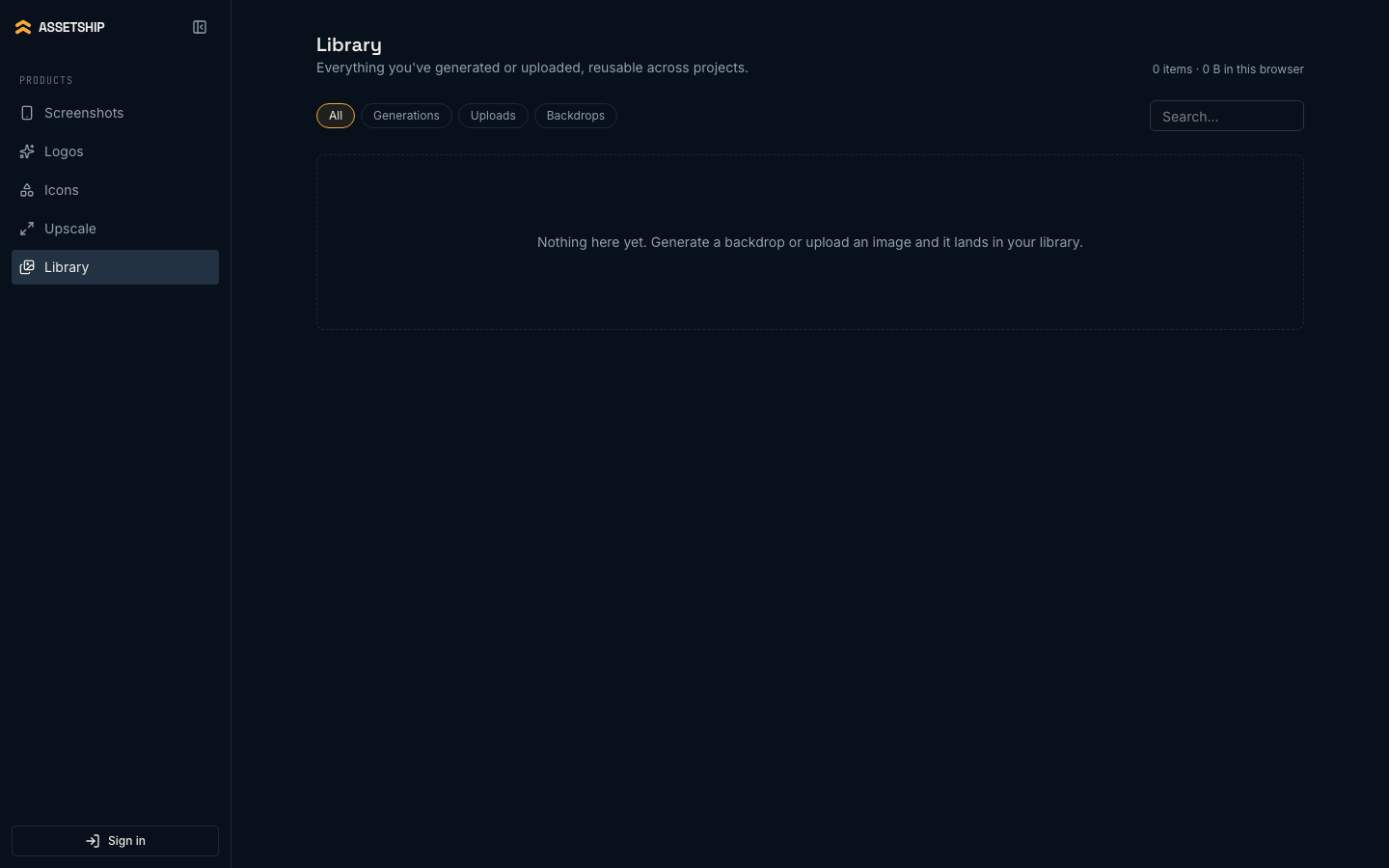
- Generations
- AI results, kept with the prompt and model that produced them.
- Uploads
- Your own images.
- Backdrops
- Saved backdrop recipes — the gradient, pattern and overlay settings rather than a flattened image, so they re-render correctly at any screen size.
Each card offers Upscale, Download and Delete on hover, and a search box filters by the prompt text. In the editor, Choose from library opens the same collection as a backdrop picker, and the twelve most recent items sit in the inspector as a strip you can click straight into place.